How to use this page
- Work through Tasks 1–5 and tick each step as you complete it. Your progress and answers are saved in this browser automatically.
- Wherever you see
 Screenshot, capture your lab progress and attach the screenshot right on this page. Add a short explanation for each. For better visibility, don't take screenshots in dark mode.
 - Answer the Task 6 questions, then use Print / Save as PDF to export your answers and screenshots as one submission file.
- Do not delete the resources in this lab — they are required for subsequent labs. Stop your VMs at the end to minimize costs.
Lab Objectives reference
Lab scenario: deploy an Azure Virtual Desktop environment that uses Microsoft Entra joined session hosts.
Lab dependencies: a Microsoft Entra user account (Odl_user) with the Owner role in the Azure subscription assigned to you by the school.
In this lab, you will:
- Task 1 — Prepare the Azure subscription for deployment of an Azure Virtual Desktop host pool 15 pts
- Task 2 — Deploy an Azure Virtual Desktop host pool 20 pts
- Task 3 — Create an Azure Virtual Desktop application group 20 pts
- Task 4 — Create an Azure Virtual Desktop workspace 10 pts
- Task 5 — Grant access to Azure Virtual Desktop host pools 15 pts
- Task 6 — Summary Questions 20 pts
Task 1: Prepare the Azure subscription for deployment of an Azure Virtual Desktop host pool 15 pts
-
Register-AzResourceProvider -ProviderNamespace Microsoft.DesktopVirtualization
Note: Do not wait for the registration to complete — it might take a couple of minutes.
-
Setting Value Subscription your lab subscription Resource group <sName>-cpoF67-11e-RGVirtual network name cpoF67-vnet11eRegion your Azure Virtual Desktop deployment region -
Setting Value IP address space 10.20.0.0/16Edit the default subnet entry:
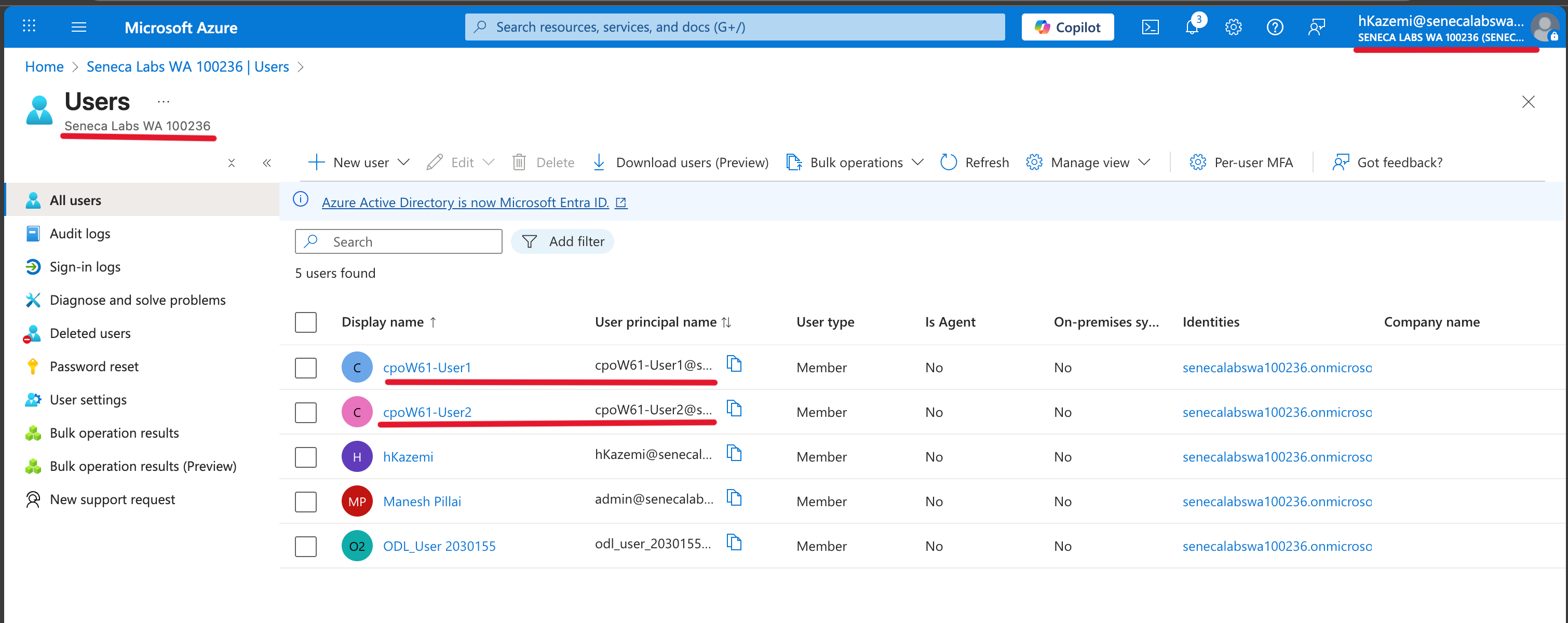
Setting Value Name hp1-SubnetStarting address 10.20.1.0Enable private subnet Disabled - Screenshot must show your Odl_user account, the cpoF67-User1-<sName> and cpoF67-User2-<sName> users and the AVD-DAG-<sName> and AVD-RemoteApp-<sName> groups with their members
Task 2: Deploy an Azure Virtual Desktop host pool 20 pts
-
Setting Value Resource group <sName>-cpoF67-21e-RGHost pool name <sName>-cpoF67-hp1Location your AVD deployment region Validation environment No Preferred app group type Desktop Host pool type Pooled Create Session Host Configuration No Load balancing algorithm Breadth-first Note: with Breadth-first, the max session limit parameter is optional.
-
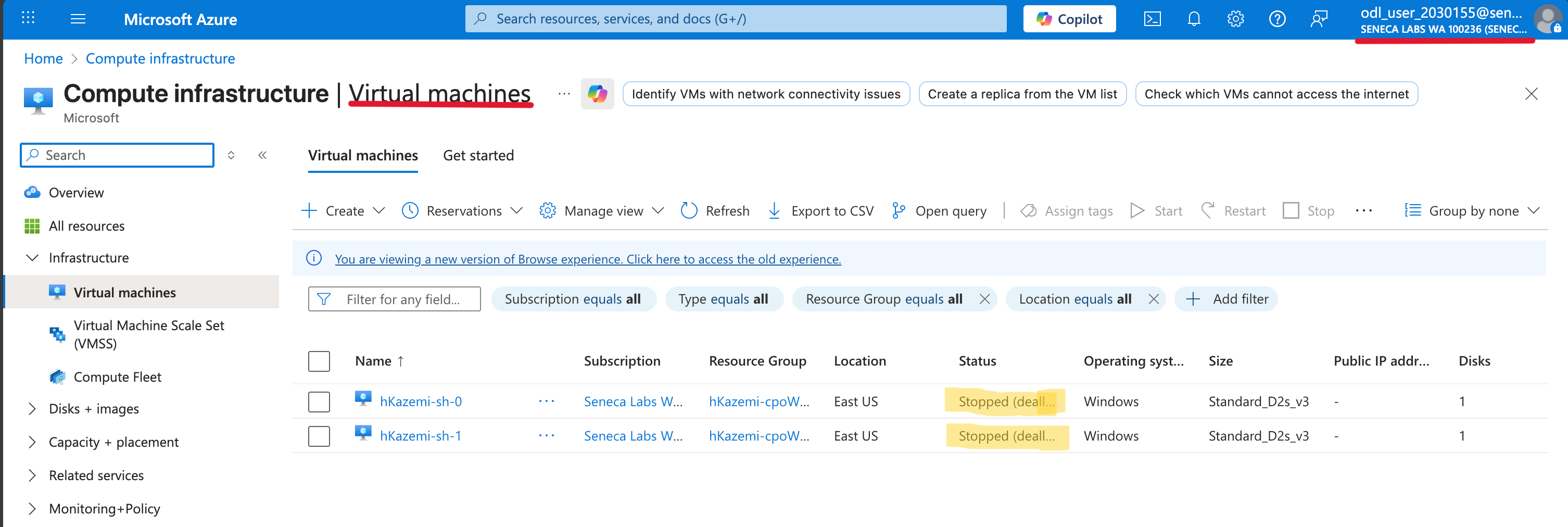
Setting Value Add virtual machines Yes Name prefix <sName>-shVirtual machine type Azure virtual machine Availability options No infrastructure redundancy required Security type Trusted launch virtual machines Image Windows 11 Enterprise multi-session, Version 23H2 + Microsoft 365 Apps Virtual machine size Standard D2s_v3 Number of VMs 2 OS disk type Standard HDD OS disk size Default size (128GiB) Boot Diagnostics Enable with managed storage account (recommended) Virtual network cpoF67-vnet11eSubnet hp1-SubnetNetwork security group Basic Public inbound ports No Directory to join Microsoft Entra ID Enroll VM with Intune No User name Student Password / Confirm a sufficiently complex string (see note) Note: the password should be at least 12 characters with lower-case, upper-case, digits, and special characters.
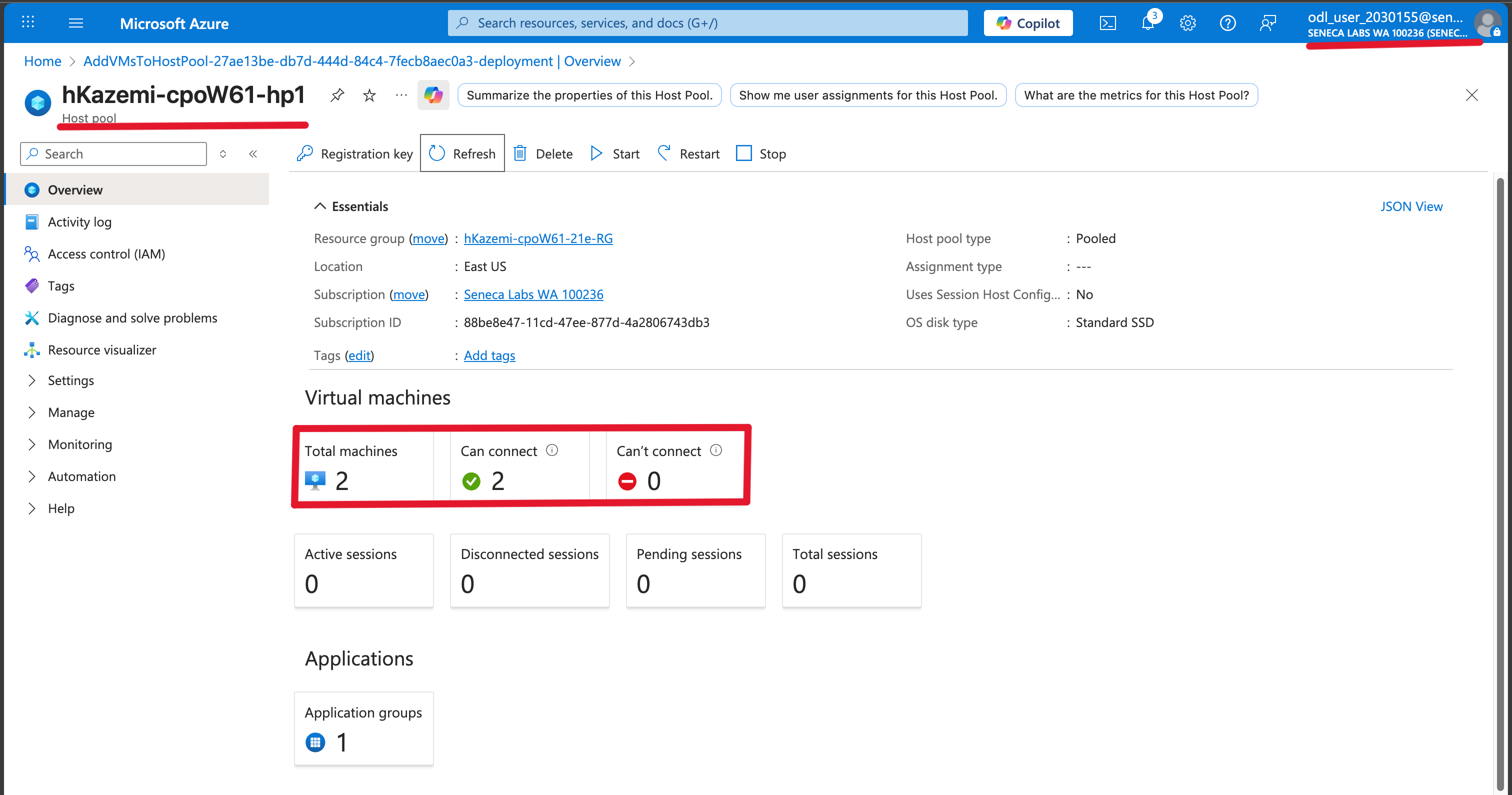
- Screenshot must show your Odl_user account, the deployed <sName>-cpoF67-hp1 host pool with its two session hosts <sName>-sh
Task 3: Create an Azure Virtual Desktop application group 20 pts
-
Setting Value Resource group <sName>-cpoF67-21e-RGHost pool <sName>-cpoF67-hp1Application group type Remote App Application group name <sName>-cpoF67-hp1-Office365-RAG -
Setting Value Resource group <sName>-cpoF67-21e-RGHost pool <sName>-cpoF67-hp1Application group type RemoteApp Application group name <sName>-cpoF67-hp1-Utilities-RAG -
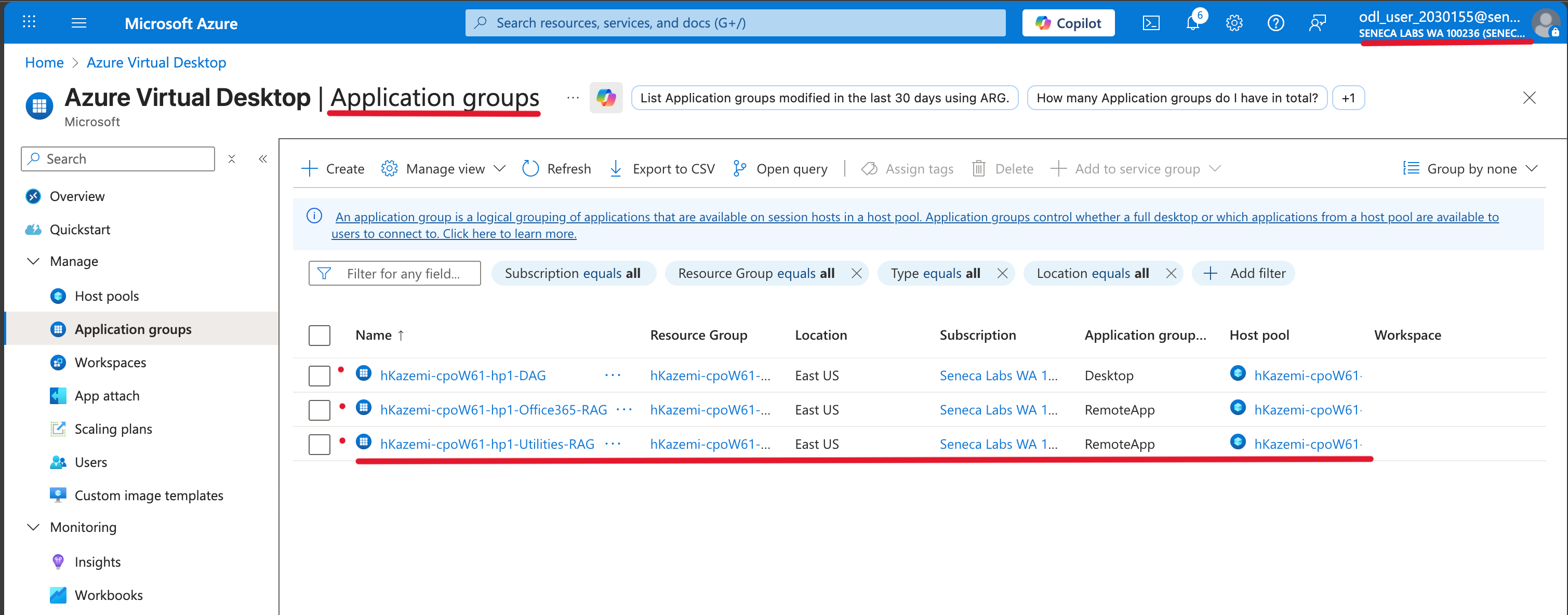
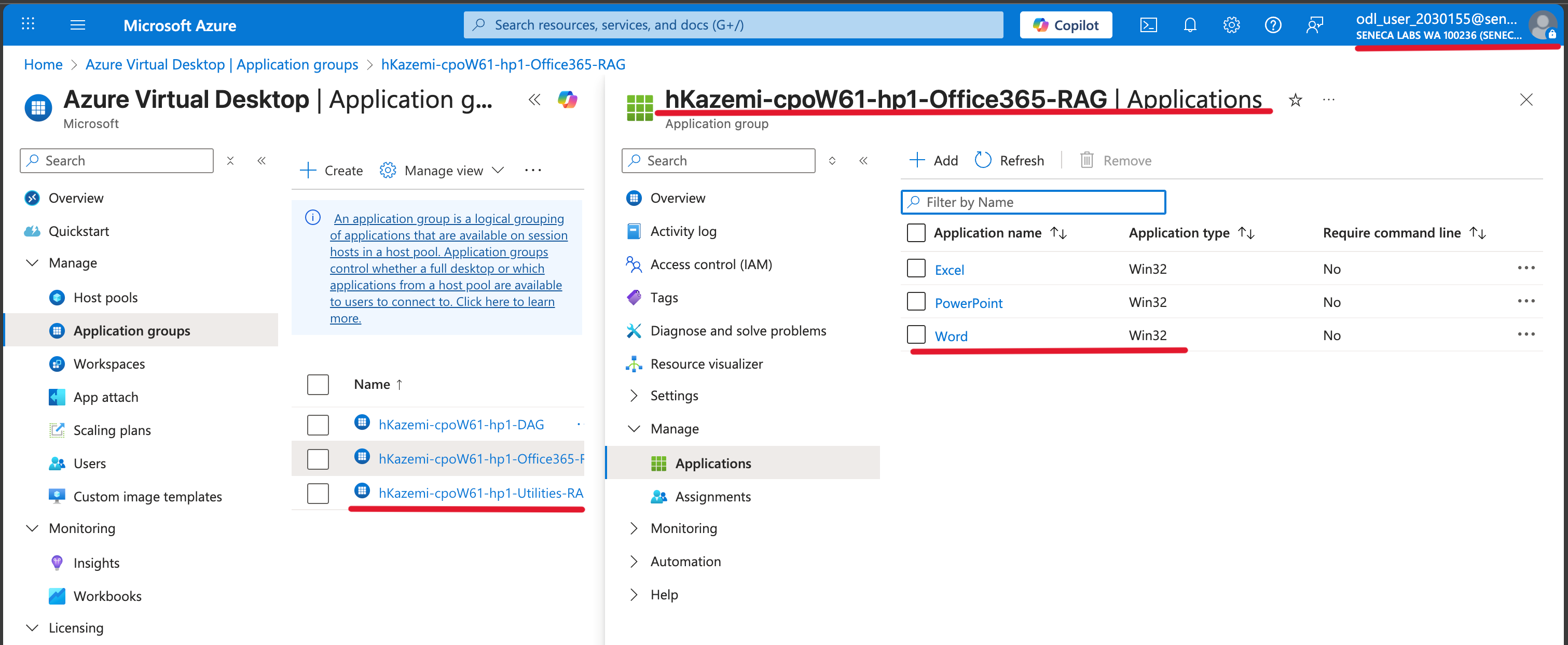
Setting Value Application source File path Application path C:\Windows\system32\cmd.exeApplication identifier Command Prompt Display name Command Prompt Description Windows Command Prompt Require command line No - Screenshot must show your Odl_user account, the <sName>-cpoF67-hp1-DAG, -Office365-RAG and -Utilities-RAG application groups
Task 4: Create an Azure Virtual Desktop workspace 10 pts
-
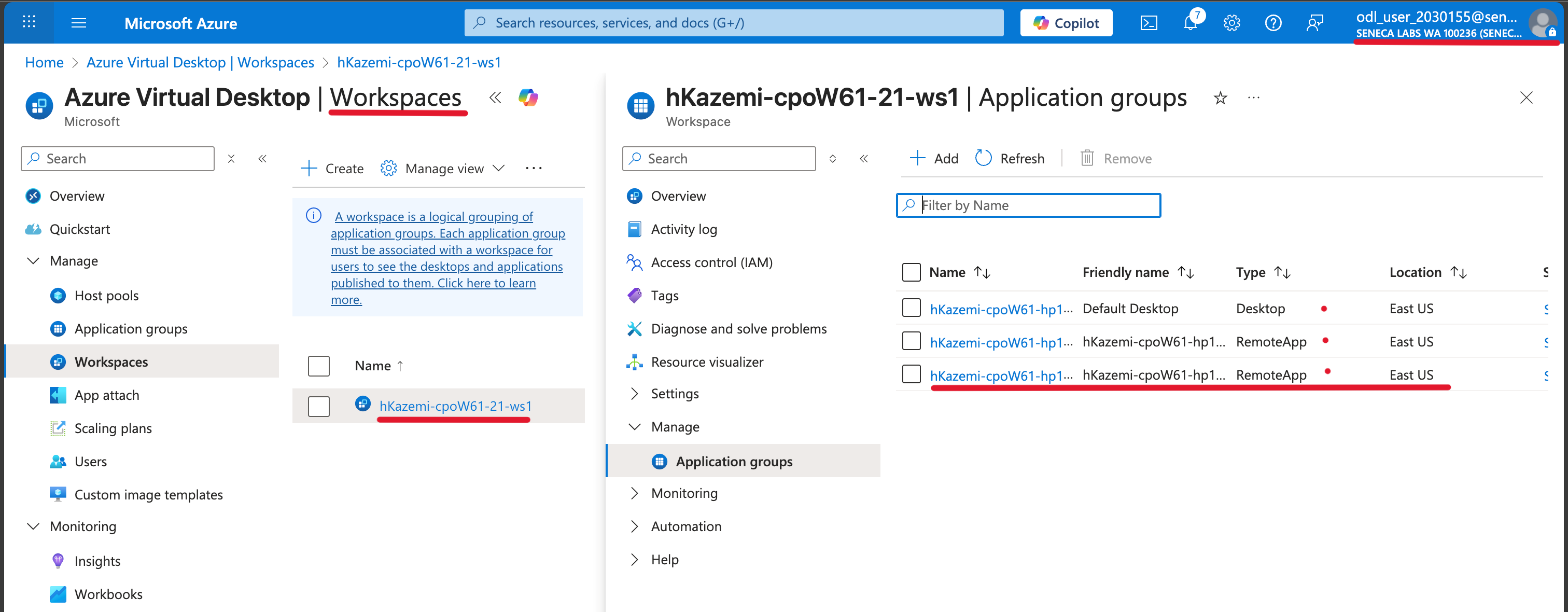
Setting Value Resource group <sName>-cpoF67-21e-RGWorkspace name <sName>-cpoF67-21-ws1Friendly name <sName>-cpoF67-21-ws1Location your AVD deployment region - Screenshot must show your Odl_user account, the <sName>-cpoF67-21-ws1 workspace with the three application groups registered
Task 5: Grant access to Azure Virtual Desktop host pools 15 pts
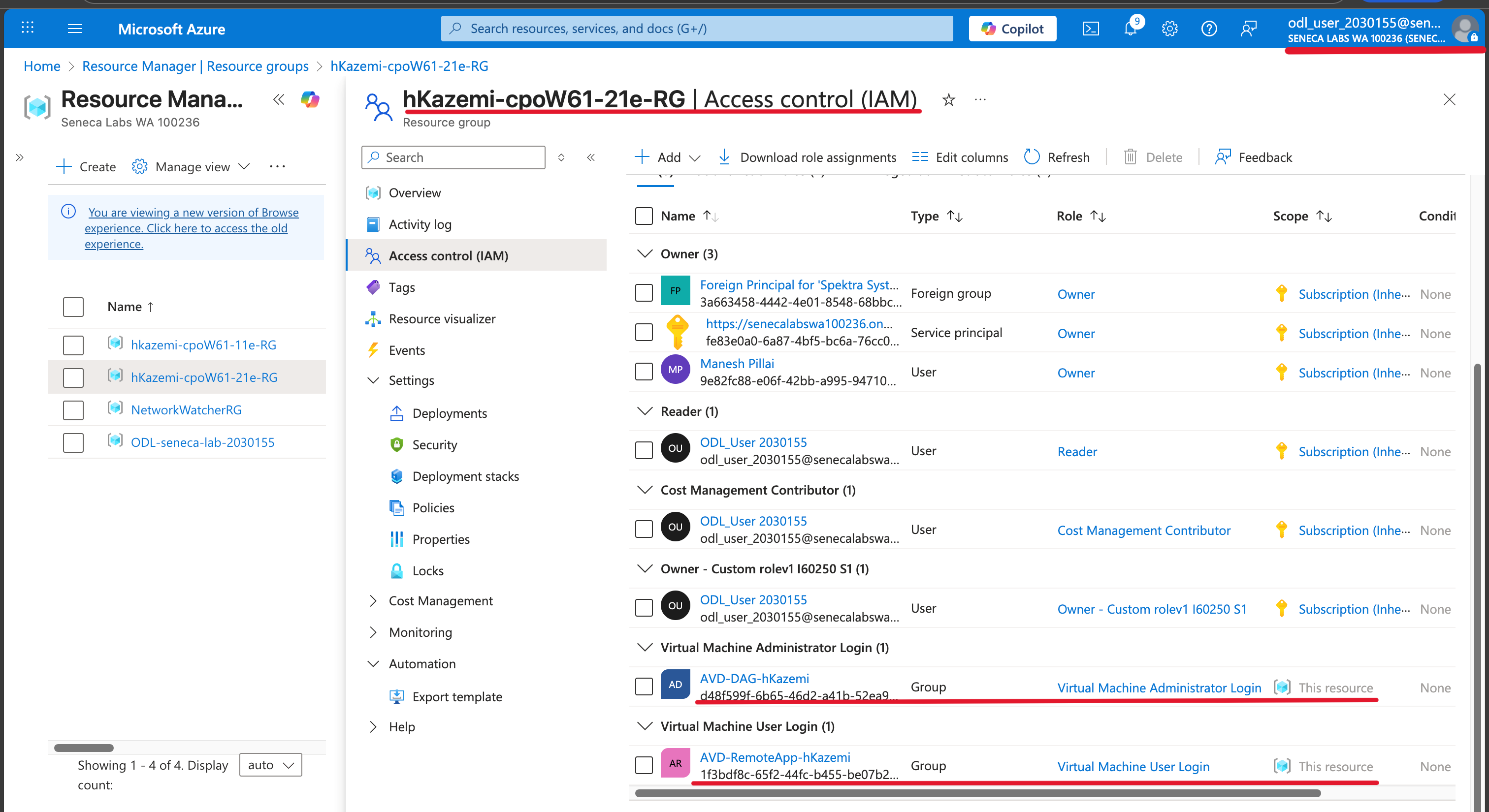
Note: with Microsoft Entra joined session hosts, you must assign RBAC roles. The Virtual Machine User Login role is required to sign in to session hosts, and Virtual Machine Administrator Login for local administrative privileges.
- Screenshot must show your Odl_user account, the Virtual Machine User Login and Virtual Machine Administrator Login role assignments on <sName>-cpoF67-21e-RG
Task 6: Summary Questions 20 pts
Minimum 2-3 sentences each — original thinking, your own words!
Your submission preview
Screenshots you attach above and your Task 6 answers appear here. This is exactly what prints/exports as your PDF.
CPO550 Lab 01 - Deploy host pools and session hosts by using the Azure portal (Entra ID)
Name: . Account: ·
Professor: Dr. Kazemi
Submit compile & export
Sample screenshots reference
These screenshots are just samples. Your screenshots may vary, but they should include similar details underlined.
Important Lab Cleanup Instructions
Do NOT delete any resources created in this lab — they are required for subsequent labs. To minimize costs, stop all virtual machines (VMs) immediately. Restart them only when beginning the next lab.