
How to use this page
- Work through Tasks 1–4 and tick each step as you complete it. Your progress and answers are saved in this browser automatically.
- Wherever you see
 Screenshot, capture your lab progress and attach the screenshot right on this page. Add a short explanation for each. For better visibility, don't take screenshots in dark mode.
 - Answer the Task 5 questions, then use Print / Save as PDF to export your answers and screenshots as one submission file.
- Do not delete the resources in this lab — they are required for subsequent labs. Stop your VMs at the end to minimize costs.
Lab Objectives reference
Lab scenario: you have an existing Azure Virtual Desktop environment. You want to monitor the status and activities of the environment.
Lab dependencies: Lab 01 (Deploy host pools and session hosts by using the Azure portal) and Lab 02 (Manage host pools and session hosts by using the Azure portal) completed.
In this lab, you will:
- Task 1 — Register the Azure subscription with the Microsoft.Insights resource provider 15 pts
- Task 2 — Create an Azure Log Analytics workspace 25 pts
- Task 3 — Set up the Virtual Desktop Insights configuration workbook 25 pts
- Task 4 — Disable AVD Diagnostic Settings 15 pts
- Task 5 — Summary Questions 20 pts
Task 1: Register the Azure subscription with the Microsoft.Insights resource provider 15 pts
Note: Azure Virtual Desktop Insights relies on the Microsoft.Insights resource provider, so you need to first register it within the Azure subscription you are using for this lab. In Lab 01, you performed this task by using Azure PowerShell. In this lab, you will accomplish it by using the Azure portal (either method is supported and available).
Task 2: Create an Azure Log Analytics workspace 25 pts
Note: Azure Virtual Desktop Insights is a dashboard built on Azure Monitor Workbooks that facilitates monitoring of Azure Virtual Desktop environments. You can only monitor Autoscale operations with Insights with pooled host pools.
-
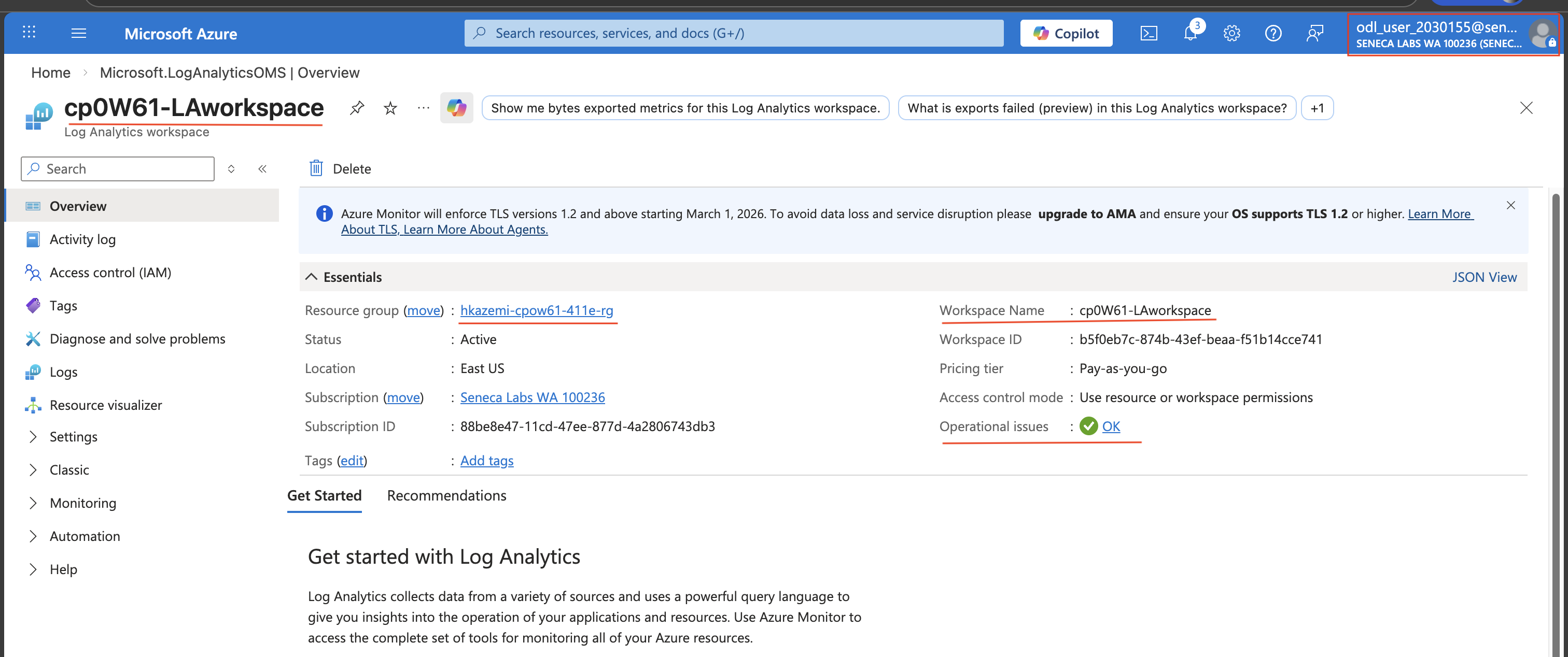
Setting Value Subscription The name of the Azure subscription you are using in this lab Resource group <sName>-cpoF67-411e-RG(new resource group)Name cpoF67-LAworkspaceRegion The name of the Azure region where you deployed the Azure Virtual Desktop environment - Screenshot must show your Odl_user account, the cpoF67-LAworkspace on the Review + create page in the <sName>-cpoF67-411e-RG resource group
Note: Next, you need to enable data collection in the newly provisioned Log Analytics workspace of diagnostics from the Azure Virtual Desktop environment, performance counters from the session hosts, and Windows Event Logs from the Azure Virtual Desktop session hosts.
Task 3: Set up the Virtual Desktop Insights configuration workbook 25 pts
Note: When opening Azure Virtual Desktop Insights for the first time, you need to set up Azure Virtual Desktop Insights to target your Azure Virtual Desktop environment.
-
Note: This effectively enables the following diagnostics tables in the target Log Analytics workspace: Management Activities, Feed, Connections, Errors, Checkpoints, HostRegistration, AgentHealthStatus.
-
Note: This effectively configures the workspace for allLogs.
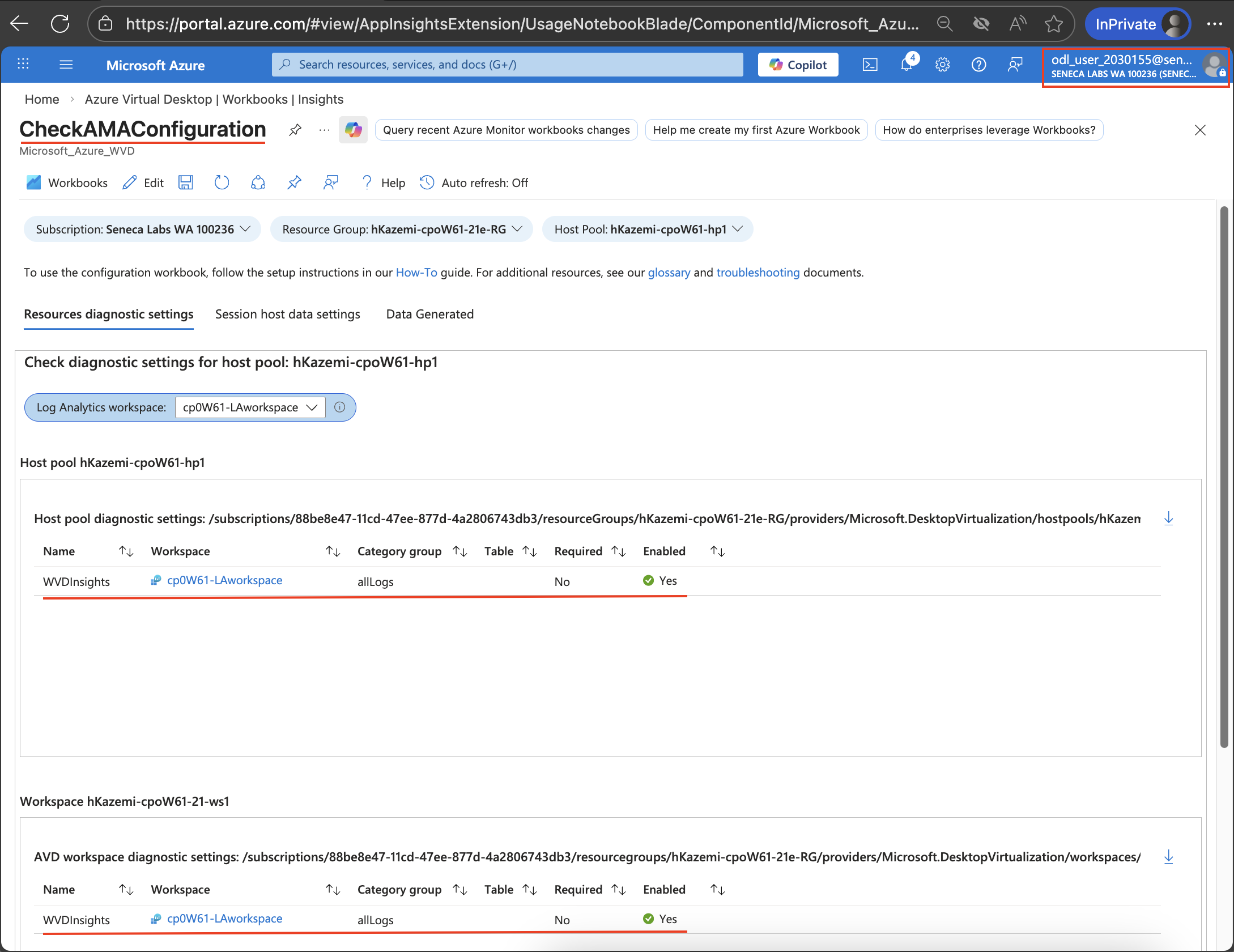
- Screenshot must show your Odl_user account, the Workspace <sName>-cpoF67-21-ws1 section with diagnostic settings enabled for allLogs and no remaining warning messages
-
Note: This effectively associates the newly created DCR with the session hosts in the <sName>-cpoF67-hp1 host pool.
-
Note: This effectively installs the Azure Monitor extension on the session hosts in the <sName>-cpoF67-hp1 host pool.
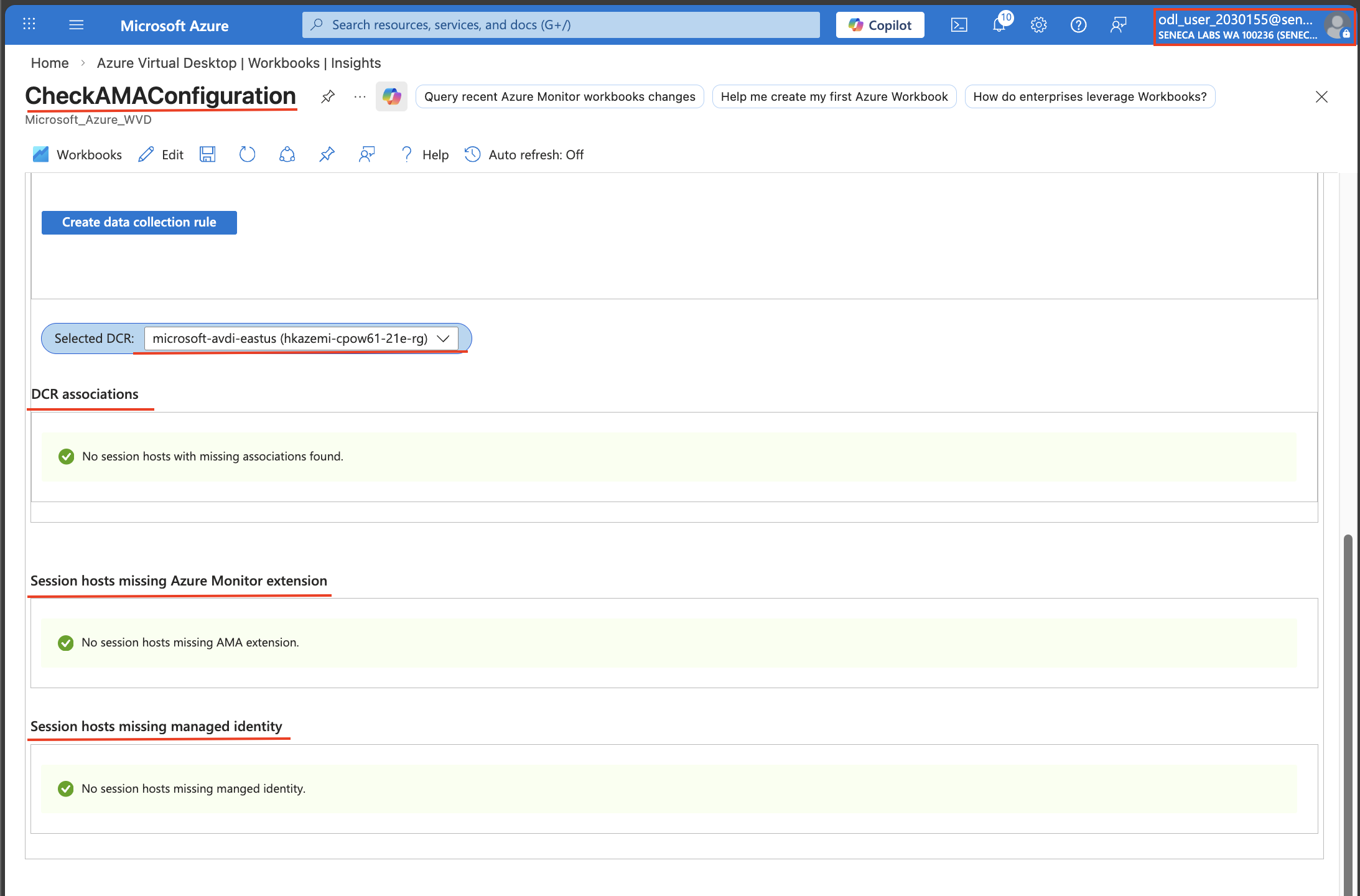
- Screenshot must show your Odl_user account, the CheckAMAConfiguration page with no error or warning messages after adding the Azure Monitor extension
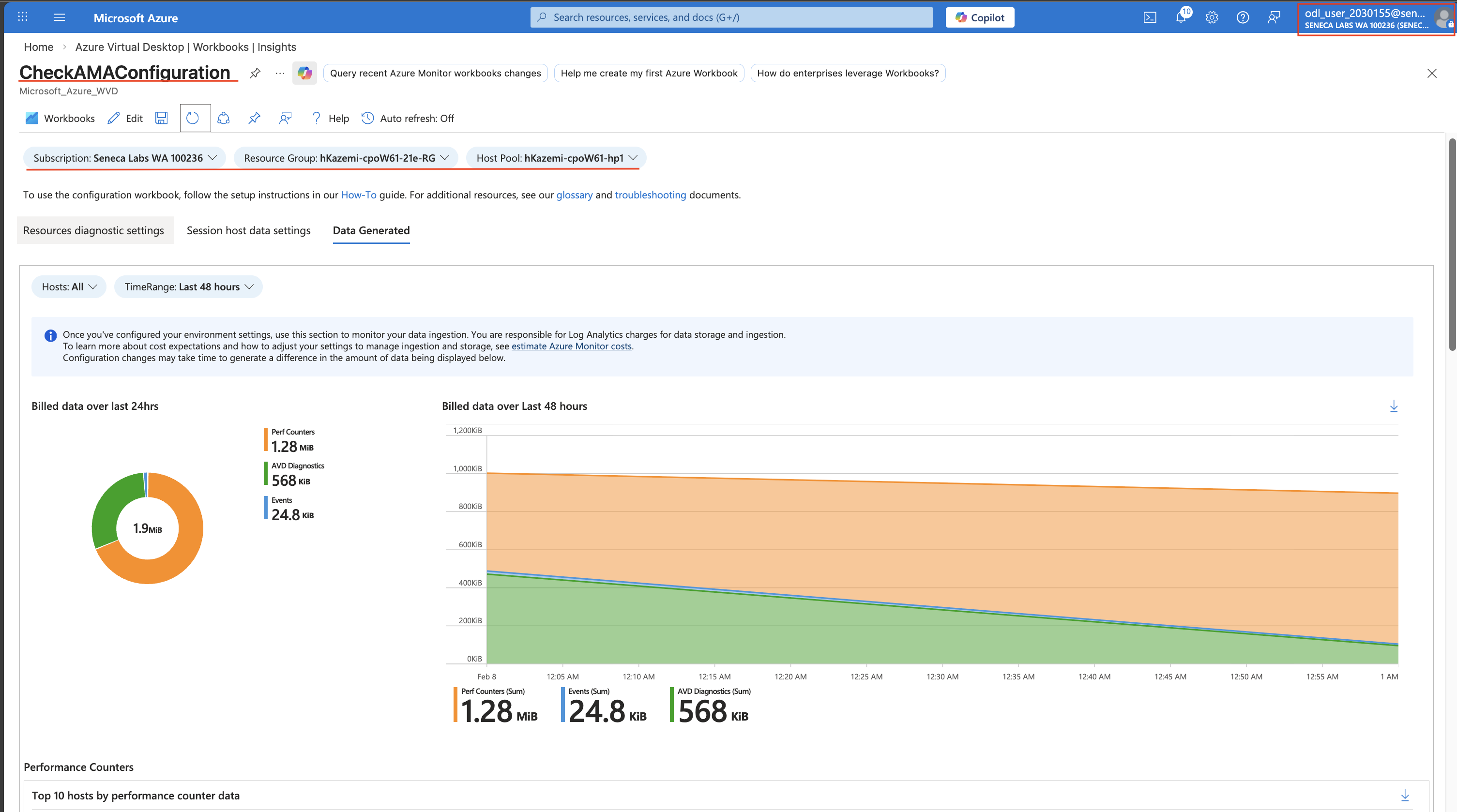
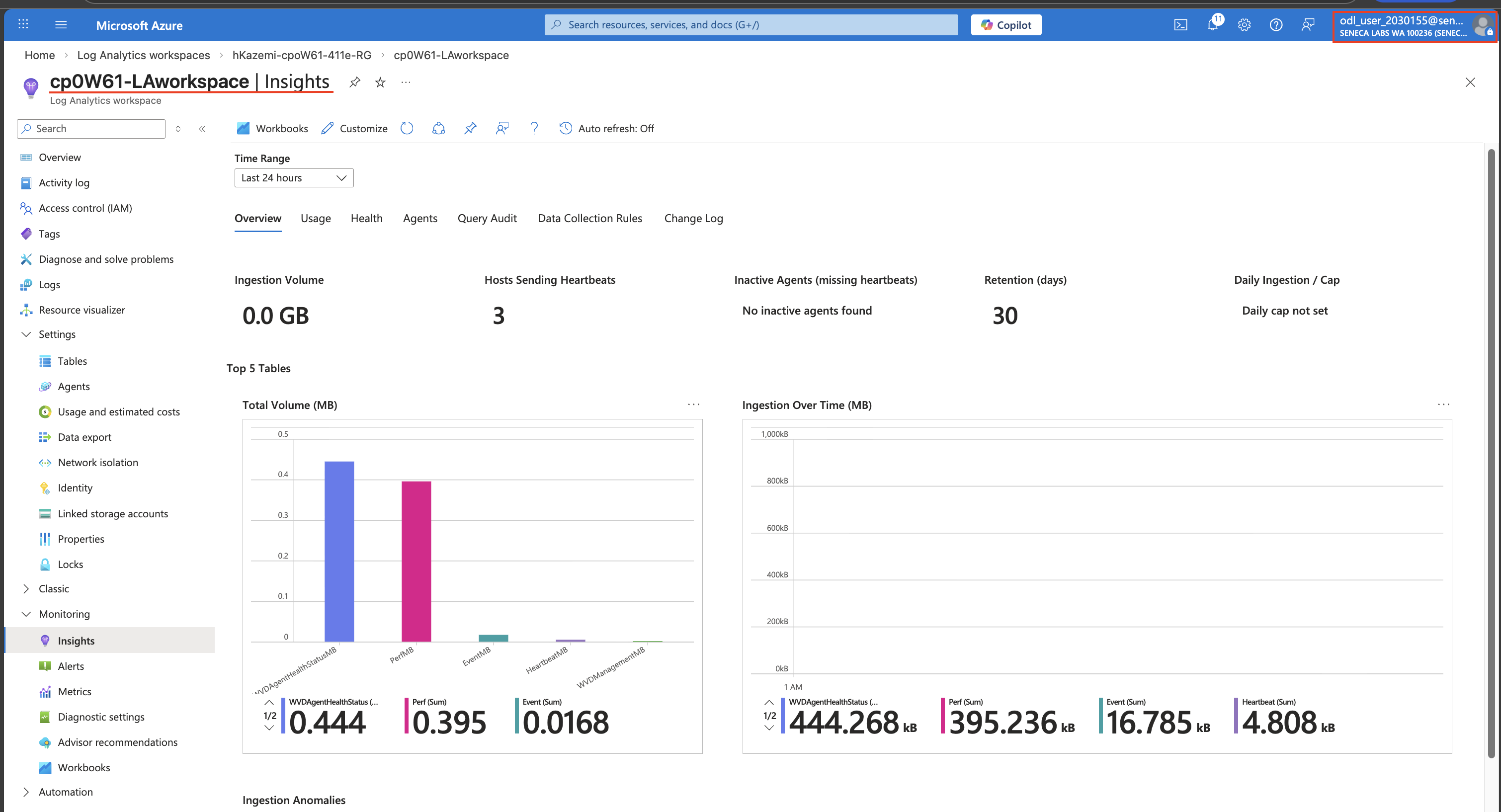
- Screenshot must show your Odl_user account, the Data generated tab with the Billed data over last 24hrs, Performance Counters, and Events graphs
Note: Use the Billed data over last 24hrs section to monitor data ingestion. You are responsible for Log Analytics charges for data storage and ingestion.
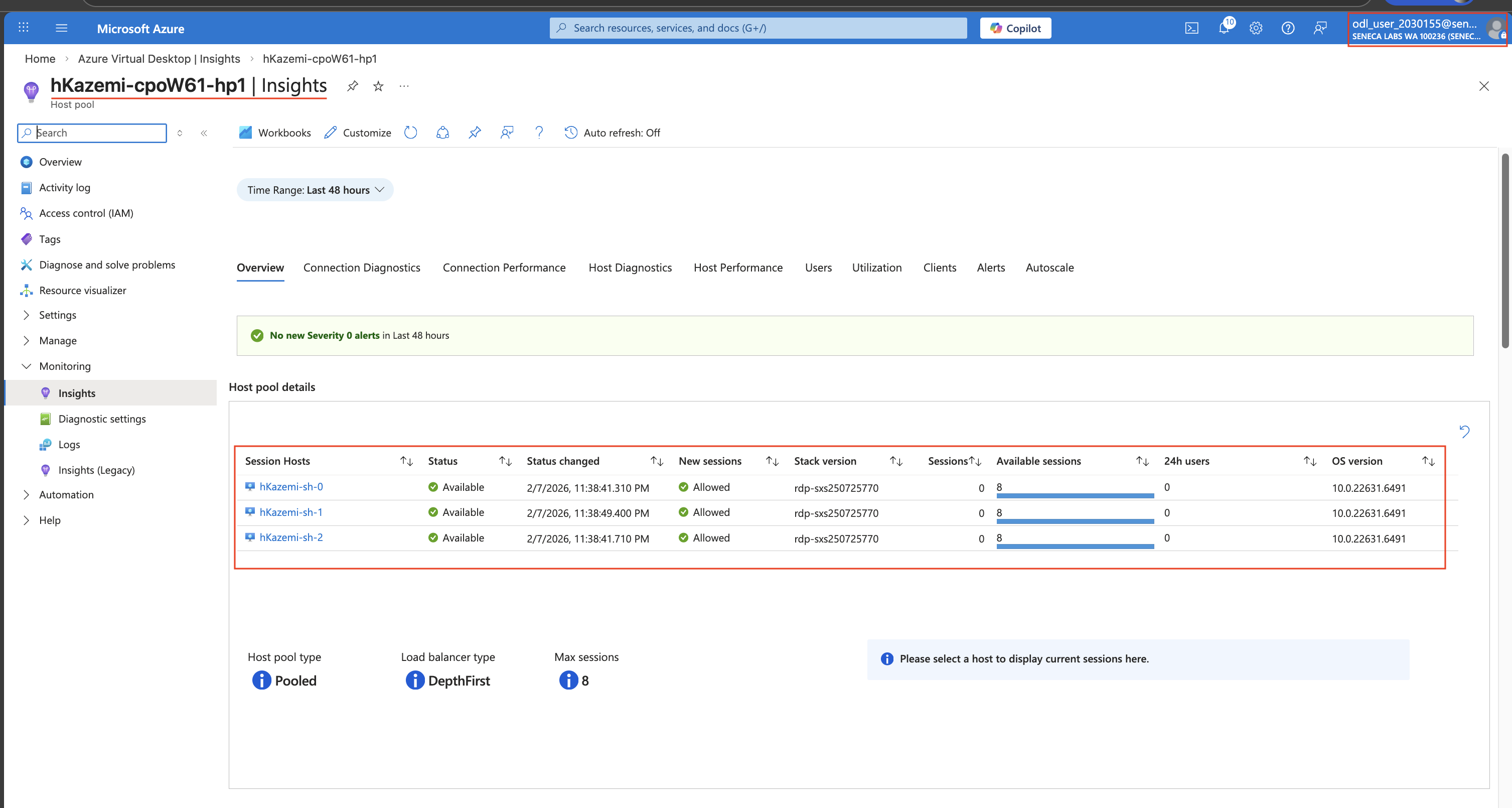
- Screenshot must show your Odl_user account, the Azure Virtual Desktop | Insights page with the Connection Reliability, Connection Diagnostics, Connection Performance, Users, Utilization, Clients, and Alerts tabs
Task 4: Disable AVD Diagnostic Settings 15 pts
Note: Now we need to stop collecting monitoring data to stop charges on our account. Go through the following steps to stop data collection while keeping the workspace intact for future use.
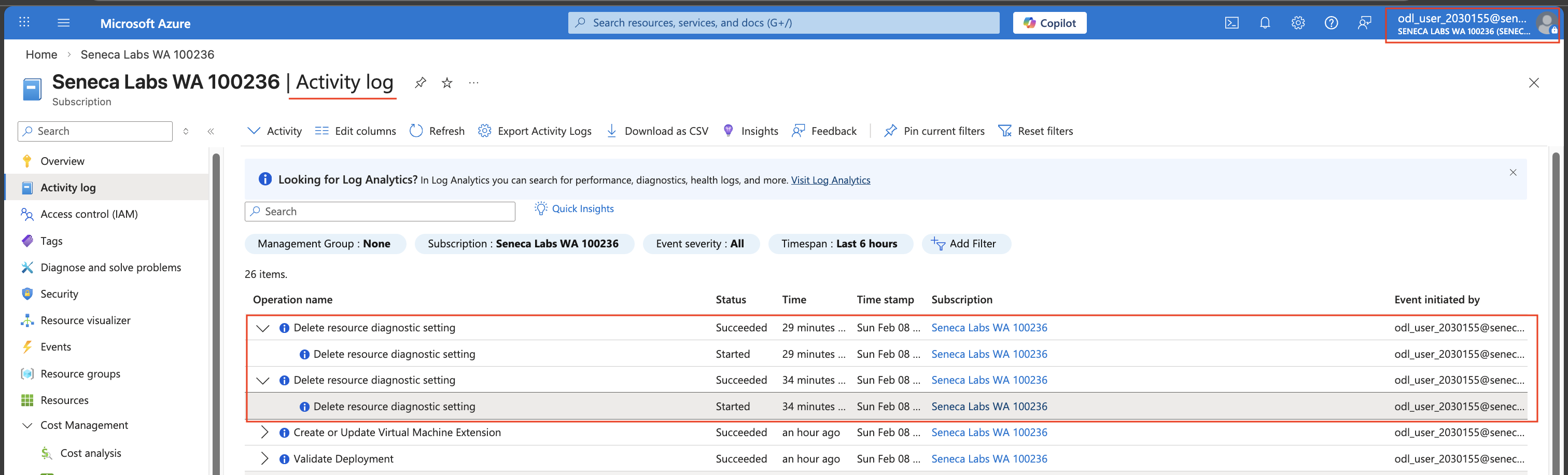
- Screenshot must show your Odl_user account, the deleted diagnostic settings on the <sName>-cpoF67-21e-ws1 workspace
- Screenshot must show your Odl_user account, the cpoF67-LAworkspace kept intact with diagnostic settings removed (data collection stopped)
Task 5: Summary Questions 20 pts
Minimum 2-3 sentences each — original thinking, your own words!
Your submission preview
Screenshots you attach above and your Task 5 answers appear here. This is exactly what prints/exports as your PDF.
CPO550 Lab 03 - Implement monitoring by using Azure Virtual Desktop Insights
Name: . Account: ·
Professor: Dr. Kazemi
Submit compile & export
Sample screenshots reference
These screenshots are just samples. Your screenshots may vary, but they should include similar details underlined.
Important Lab Cleanup Instructions
Do NOT delete any resources created in this lab — they are required for subsequent labs. To minimize costs, stop all virtual machines (VMs) immediately. Restart them only when beginning the next lab.