Implement Azure Private Link for AVD — Interactive Lab Manual · Fall 2026
How to use this page
Work through Tasks 1–7 and tick each step as you complete it. Your progress and answers are saved in this browser automatically.
Wherever you see Screenshot, capture your lab progress and attach the screenshot right on this page. Add a short explanation for each. For better visibility, don't take screenshots in dark mode.
Answer the Task 8 questions, then use Print / Save as PDF to export your answers and screenshots as one submission file.
This lab builds on the resources you created in previous labs (host pool <sName>-cpoF67-hp1, workspace <sName>-cpoF67-21-ws1, vnet cpoF67-vnet11e). After submitting, follow the cleanup instructions at the bottom to reduce your Azure credit usage.
Lab Objectives reference
Lab scenario: you have an existing Azure Virtual Desktop environment. You need to implement connection to the environment by using Azure Private Link.
Lab dependencies: Lab 01 (host pools and session hosts), Lab 02 (host pool management), and a Microsoft Entra user account (Odl_user) with the Owner role in the Azure subscription assigned to you by the school.
Task 3 — Implement a private endpoint for connections to a host pool 15 pts
Task 4 — Implement a private endpoint for feed download 15 pts
Task 5 — Implement a private endpoint for initial feed discovery 10 pts
Task 6 — Validate the private endpoint functionality 10 pts
Task 7 — Allow public network access to a host pool and workspace 10 pts
Task 8 — Summary Questions 20 pts
Note: Azure Virtual Desktop has three workflows with three corresponding resource types to use with private endpoints — initial feed discovery (global sub-resource), feed download (feed sub-resource), and connections to host pools (connection sub-resource). In this lab, you implement the arrangement where all parts of the connection use private routes.
Note: Before you can use Private Link with Azure Virtual Desktop, you should re-register the Microsoft.DesktopVirtualization resource provider.
Task 2: Create an Azure virtual network subnet 10 pts
Note: You could use an existing subnet of an Azure virtual network to implement private endpoints in the lab scenario, but it is a common practice to use a dedicated subnet for this purpose.
Setting
Value
Name
pe-Subnet
Starting address
10.20.255.0
Enable private subnet (no default outbound access)
Disabled
Task 3: Implement a private endpoint for connections to a host pool 15 pts
Setting
Value
Subscription
your lab subscription
Resource group
<sName>-cpoF67-11e-RG
Name
<sName>-cpoF67-pehp1
Network Interface Name
<sName>-cpoF67-pehp1-nic
Region
your Azure Virtual Desktop deployment region
Setting
Value
Virtual network
cpoF67-vnet11e (<sName>-cpoF67-11e-RG)
Subnet
pe-Subnet
Network policy for private endpoints
Disabled
Private IP configuration
Dynamically allocate IP address
Setting
Value
Integrate with private DNS zone
Yes
Subscription
your lab subscription
Resource group
<sName>-cpoF67-11e-RG
Note: This step will result in creation of a private DNS zone named privatelink.wvd.microsoft.com.
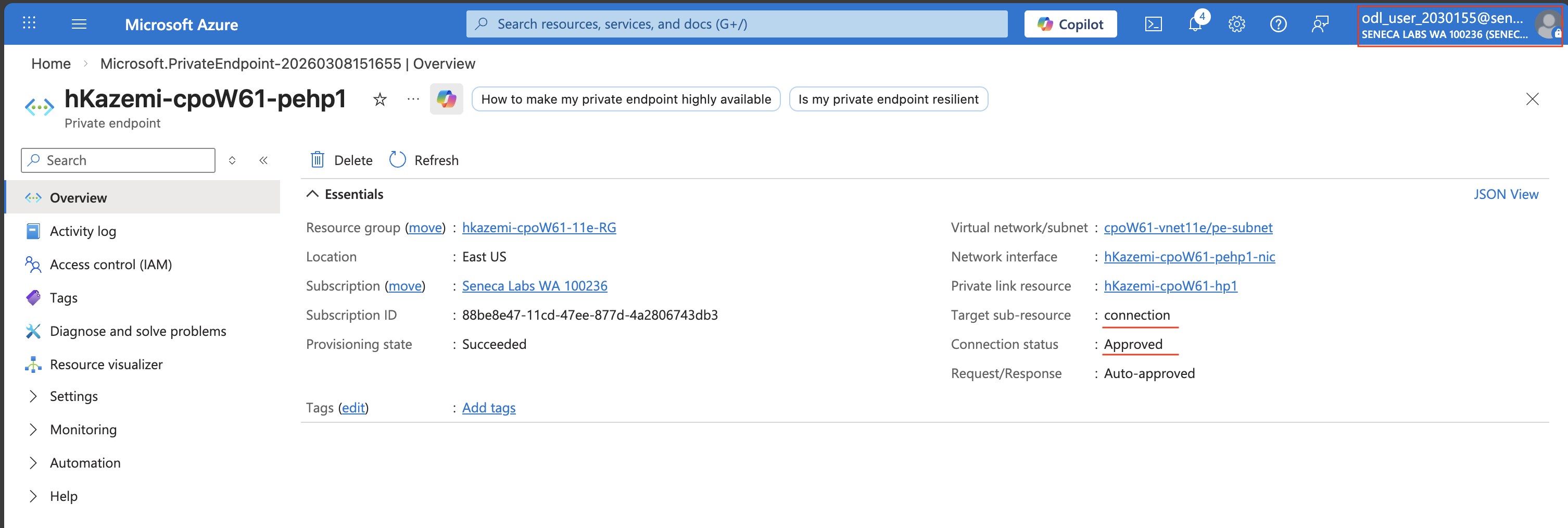
Screenshot must show your Odl_user account, the deployed <sName>-cpoF67-pehp1 private endpoint for the connection sub-resource with the <sName>-cpoF67-hp1 host pool and its Approved connection status
Task 4: Implement a private endpoint for feed download 15 pts
Setting
Value
Subscription
your lab subscription
Resource group
<sName>-cpoF67-11e-RG
Name
<sName>-pefeeddwnld
Network Interface Name
<sName>-pefeeddwnld-nic
Region
your Azure Virtual Desktop deployment region
Setting
Value
Virtual network
cpoF67-vnet11e (<sName>-cpoF67-11e-RG)
Subnet
pe-Subnet
Network policy for private endpoints
Disabled
Private IP configuration
Dynamically allocate IP address
Setting
Value
Integrate with private DNS zone
Yes
Subscription
your lab subscription
Resource group
<sName>-cpoF67-11e-RG
Note: This step will leverage the private DNS zone named privatelink.wvd.microsoft.com you created in the previous task.
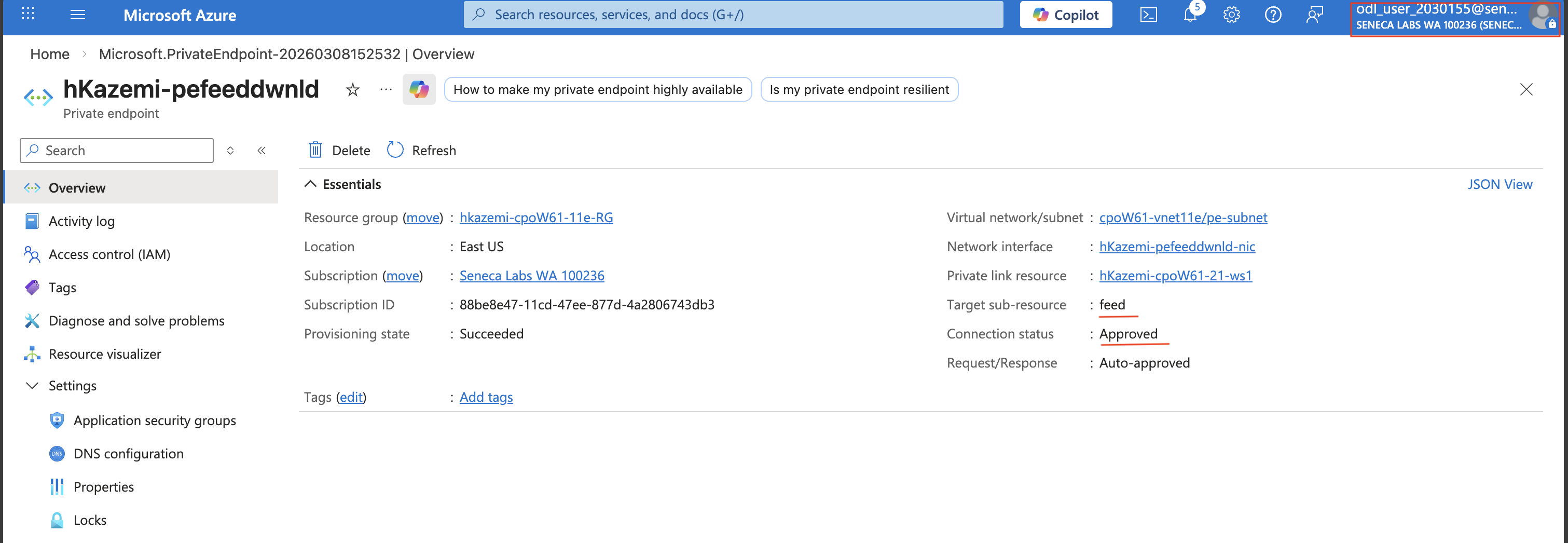
Screenshot must show your Odl_user account, the <sName>-pefeeddwnld private endpoint for the feed sub-resource of the <sName>-cpoF67-21-ws1 workspace
Task 5: Implement a private endpoint for initial feed discovery 10 pts
Setting
Value
Subscription
your lab subscription
Resource group
<sName>-cpoF67-11e-RG
Name
<sName>-pefeeddisc
Network Interface Name
<sName>-pefeeddisc-nic
Region
your Azure Virtual Desktop deployment region
Setting
Value
Virtual network
cpoF67-vnet11e (<sName>-cpoF67-11e-RG)
Subnet
pe-Subnet
Network policy for private endpoints
Disabled
Private IP configuration
Dynamically allocate IP address
Setting
Value
Integrate with private DNS zone
Yes
Subscription
your lab subscription
Resource group
<sName>-cpoF67-11e-RG
Note: This step will result in creation of a private DNS zone named privatelink-global.wvd.microsoft.com.
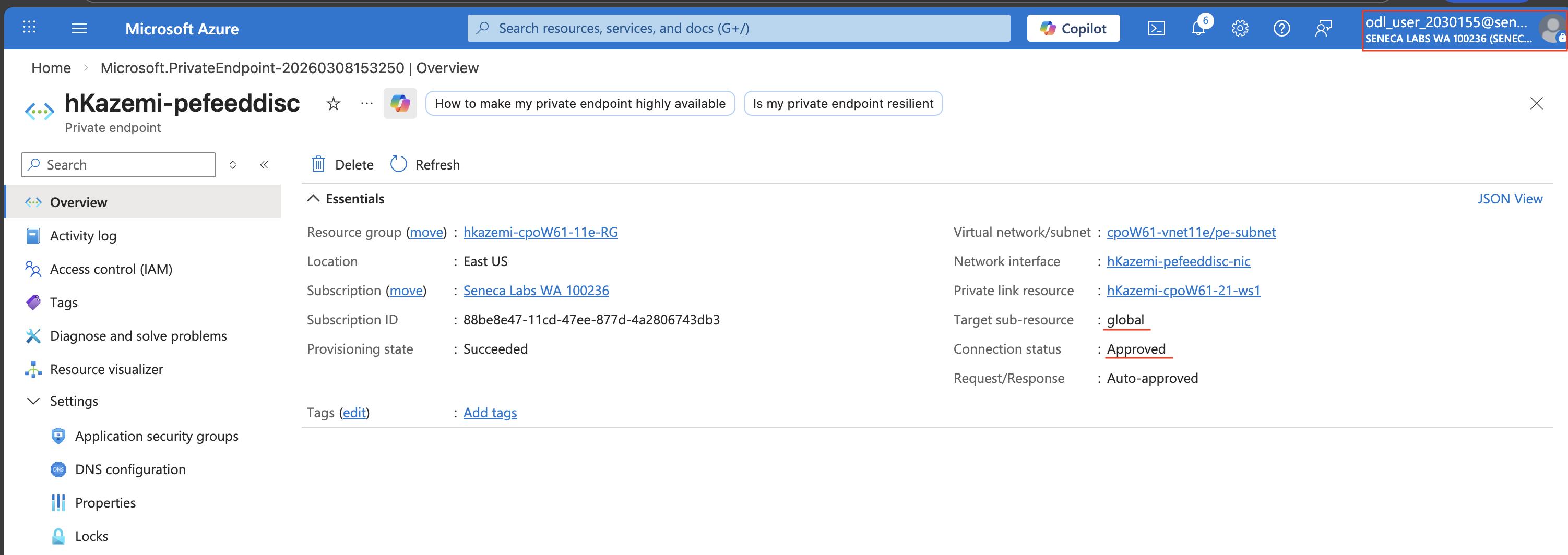
Screenshot must show your Odl_user account, the <sName>-pefeeddisc private endpoint for the global sub-resource of the <sName>-cpoF67-21-ws1 workspace
Task 6: Validate the private endpoint functionality 10 pts
Note: By default, connectivity to Azure Virtual Desktop workspaces and host pools is allowed from public networks. You will start by changing the default settings and enforcing private access.
Setting
Value
Name
client-Subnet
Starting address
10.20.2.0
Enable private subnet (no default outbound access)
Disabled
Setting
Value
Subscription
your lab subscription
Resource group
new resource group cp0F67-111e-RG
Virtual machine name
<sName>-client-vm0
Region
your Azure Virtual Desktop deployment region
Availability options
No infrastructure redundancy required
Security type
Standard
Image
Windows 11 Pro, version 24H2 - x64 Gen2
Size
Standard D2s_v3
Username
Adminuser
Password
any valid password of your choice
Public inbound ports
None
Licensing
Enable the checkbox
Setting
Value
Virtual network
cpoF67-vnet11e
Subnet
client-Subnet
Public IP
(new) <sName>-client-vm0-ip
NIC network security group
Advanced
Setting
Value
Source
IP Addresses
Source IP addresses/CIDR ranges
leave unchanged (this should still contain your public IP address)
Source port ranges
*
Destination
Any
Service
RDP
Action
Allow
Priority
300
Name
AllowCidrBlockRDPInbound
Setting
Value
Patch orchestration options
Manual updates
Setting
Value
Boot diagnostics
Disable
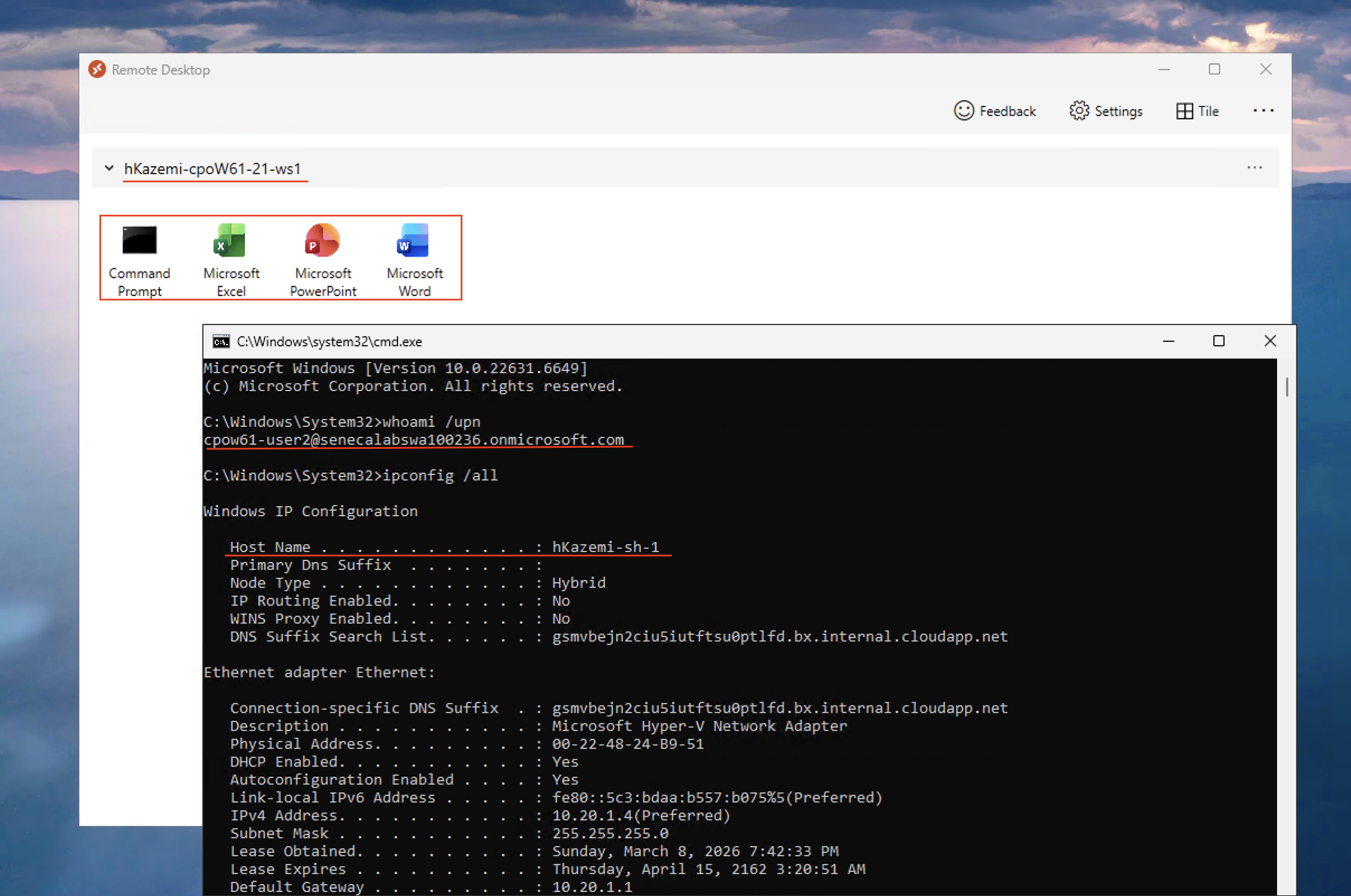
Screenshot must show your Odl_user account, the Command Prompt Remote App session with the whoami /upn and ipconfig /all output displaying the cpoF67-User2 identity and the private IP configuration
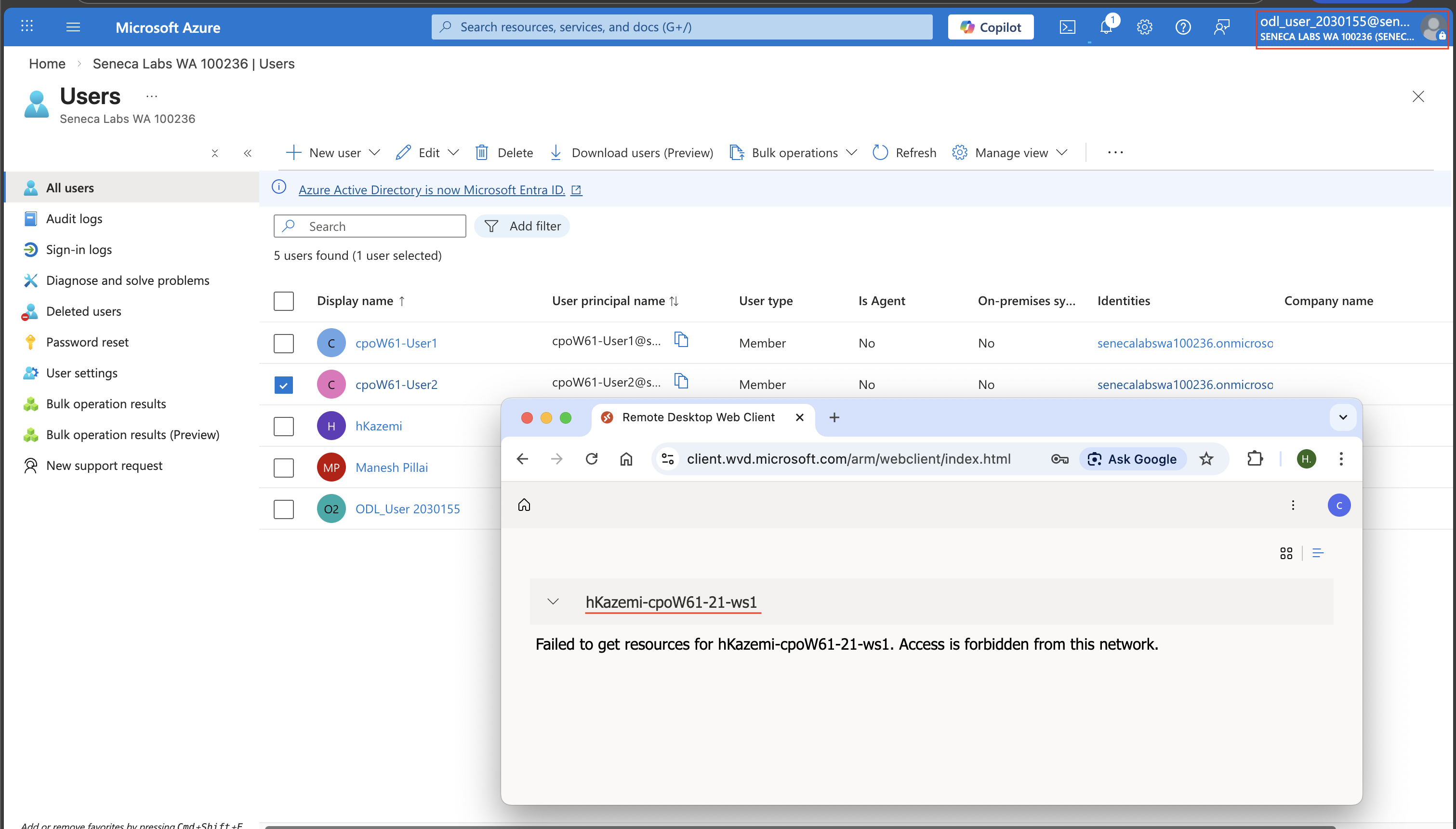
Screenshot must show your Odl_user account, the web client error message showing that the connection failed while public access was disabled
Task 7: Allow public network access to a host pool and workspace 10 pts
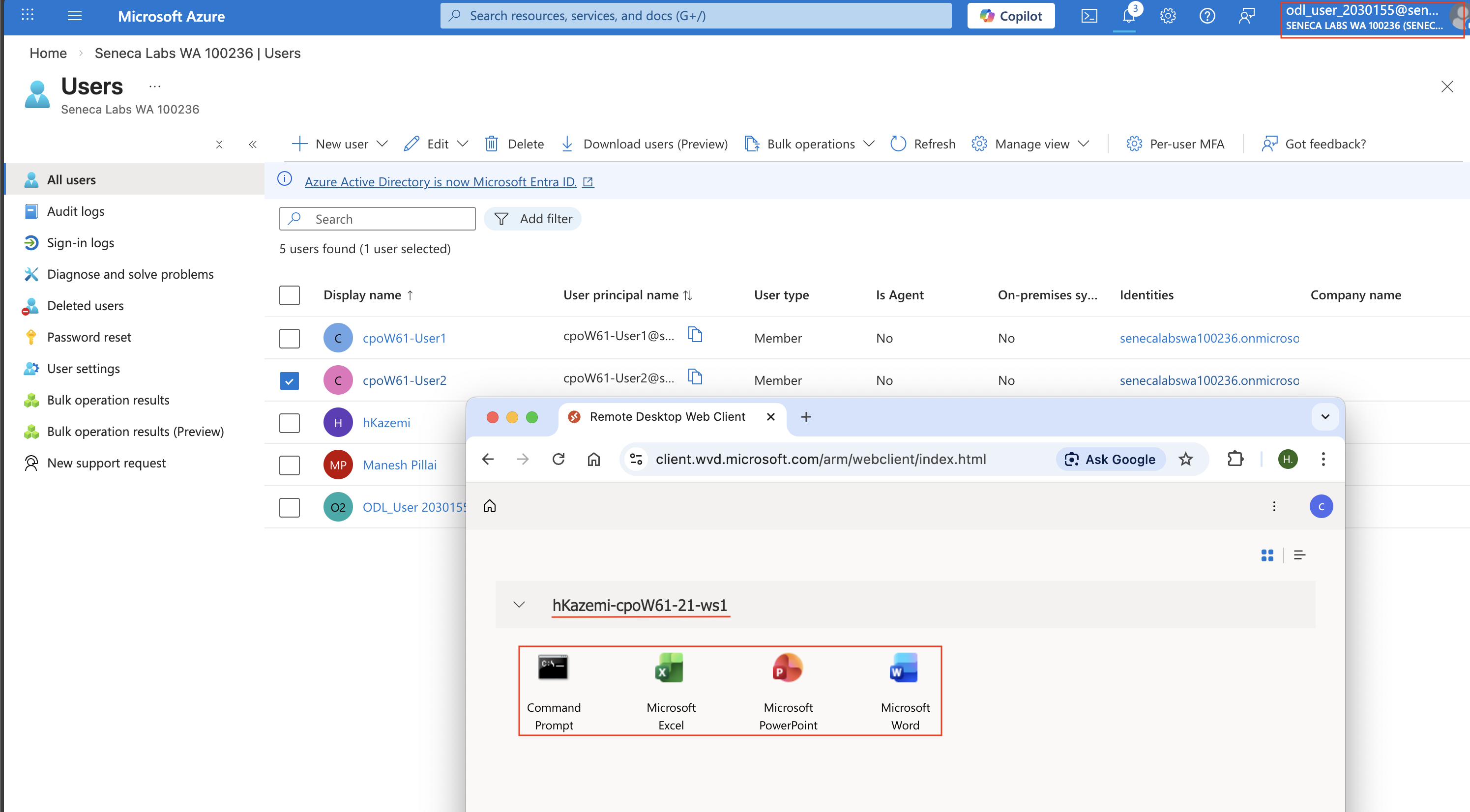
Screenshot must show your Odl_user account, the web client displaying the remote application icons (Command Prompt, Microsoft Word, Microsoft Excel, Microsoft PowerPoint) after public access was re-enabled
Task 8: Summary Questions 20 pts
Minimum 2-3 sentences each — original thinking, your own words!
Your submission preview
Screenshots you attach above and your Task 8 answers appear here. This is exactly what prints/exports as your PDF.
CPO550 Lab 06 - Implement Azure Private Link for AVD
Name: . Account: ·
Professor: Dr. Kazemi
Submit compile & export
Sample screenshots reference
These screenshots are just samples. Your screenshots may vary, but they should include similar details underlined.
Reduce your Azure credit usage after you have completed and submitted the lab:
Step 1 — Delete the Lab Resource Group: open the Azure portal, navigate to Resource groups, locate cp0F67-111e-RG (created in this lab), select it, and delete it.
Step 2 — Remove extra session hosts: navigate to your yourName-cpoF67-hp1 host pool, select Session hosts, locate and remove yourName-sh-1 and yourName-sh-2. The session host list should then show only yourName-sh-0.
Step 3 — Delete the corresponding virtual machines: go to Virtual machines in the Azure portal, locate yourName-sh-1 and yourName-sh-2, select both VMs and delete them.
Final step — Stop remaining virtual machines: to further minimize your Azure costs, stop all remaining virtual machines. Restart them only when needed for the next lab.
 Screenshot, capture your lab progress and attach the screenshot right on this page. Add a short explanation for each. For better visibility, don't take screenshots in dark mode.